Fix the Xbox controller easily in Assassin’s Creed II PC (Steam)
If you found this post, then you’ll know that the controls on Assassin’s Creed II are totally broken for the Xbox One controller. Good news, though, there is a super-easy fix. I, too, had this issue and found a YouTube video that had a link to the two files needed to get it to work properly. I don’t know why Ubisoft just won’t add them to the installation to begin with, since they work, which they should, but anyways, I’ll give you the steps to do this. This will also help me in the future if I do want to play the game again.
How to set this up easily.
- Download the: Assassin’s-Creed-II-File-Fix.zip
If you want to use the one from the video, you can here: acii_wireless_360_fix_by_khemitude.rar
It’s the same thing. I just turned it into a .zip instead of a .rar - In Steam, go to Library, right-click Assassin’s Creed II and go to properties.
- Click controller. Make sure it says “Disable Steam Input“. This is important because if enabled, it will now allow this fix to work.
- Click on Installed Files and Browse. This will bring up the installed Assassin’s Creed II directory. Typically located here:
C:\Program Files (x86)\Steam\steamapps\common\Assassin’s Creed 2 - Copy and paste “x360ce.ini” and “xinput1_3.dll” that’s in the Assassin’s Creed II File Fix.zip to the Assassin’s Creed 2 directory.
- Relaunch the game.
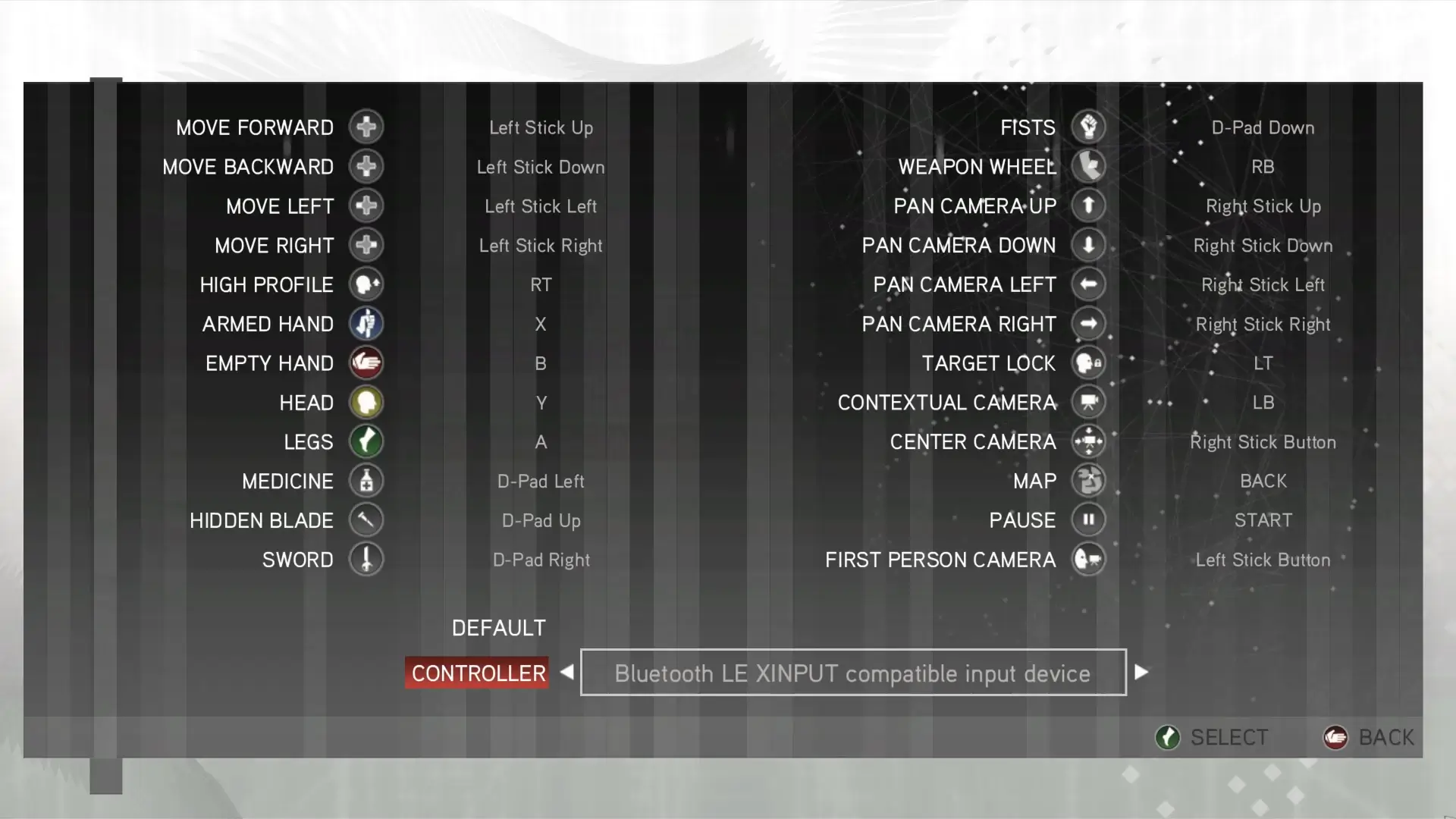
- Go back into your game’s Options / Customize Controls / and you should now have a correct layout for your controller, and the game should play as it’s meant to play with a controller…
For the Controller below, it typically says “Controller (Xbox One For Windows)”-mine, for some reason, does not. Mine says Bluetooth LE XINPUT compatible input device, but it works the same.
This is the video I watched and did my own steps, since it forgot to mention that you need to make sure Steam isn’t forcing “Enable Steam Input.”
Anyway, hope this helped you out as it did for me.